Showing posts with label technology integration ela. Show all posts

Wednesday, May 10, 2017

Sway Summary Synthesis

Blended learning is more that tech integration; it is about tailoring or allowing students some control  to meet needs of diverse learners. Students benefit with explicit instruction about how to find the right Lexile levels for them with Newsela, Readworks, and/or Common Lit.

For the lesson below, ability grouping works well for partners or groups. When working
collaboratively, those discussions about the task model the internal discussions students will need to have in future independent work.

Google classroom? Use Google Slides!

1. Students select an article from a source. You can give specific text sets in Newsela to focus discussion on text that supports current novel being read.
2. Group reads, making notes for a GIST summary of who, what, where, when, why, how and then write a 20 word GIST. Blended learning involves online instruction: create a video modelling GIST summarizing with a common text.
3. Students create a collaborative Sway for the 5W and H and 20 word GIST. Since it is collaborative, they can all work on it at the same time. 
4. Students share in a discussion board in an LMS or a platform like Edmodo.
5. Students critique at least 2 articles. Reading the article, viewing the Sway, and responding with one of the stems:
  • The summary needs more information about...
  • The summary is strong because...
  • I want to learn more about...
  • This reminds me of...
6. Groups go back to revise Sway. 

Use template below if you wish! Have students click on website link and save to their own Office 365 account. 


A huge shout out to JMozi for being the perfect fellow ELA tech educator to collaborate with! Philosophical alignment + different enough brains to build upon each other + a mutual respect = this lesson we co-created!

Monday, March 13, 2017

Blended Learning Vocabulary Practice 4 Ways!

Vocabulary: every content area has it and students need to practice it. What kind of options can you give as a way of showing understanding? Use the below 4 as options in an iPad center, warm-up, or closure activity. 


Option 1: Doodle Buddy (App)/Aww App (Web 2.0)
Create a visual representation of your vocabulary word. Using the text feature label the vocabulary
word and type the definition in your own words

Option 2: Chatterpix (App)/Blabberize (Web 2.0)
Make or take a picture associated with your vocabulary term and make it talk and tell the listener the vocabulary word and the definition in your own words

Option 3: Make Beliefs Comix (app or website)
Create a comic in which one of the character uses the vocabulary word correctly. Make sure the context clues reveal the meaning of the word.

Option 4: RWT Crosswords (App) or Crosswords Puzzle (Wed 2.0)
Create a crossword puzzle for your vocabulary words with synonym or synonym phrases as the clues.


When students are done they can submit to the LMS of your choice. If all words will be done of the course of several days, have students curate their word into a presentation tool like Google Slides, Sway, PowerPoint, or even iMovie.


Share additional ideas below!


Saturday, June 11, 2016

3D Gallery

Easy to use and apply this 3D Art Gallery by Classtools.net!


Art: create a digital portfolio of student work and student can include artist statements
Art: Artist study. Students can put work in chronological order.
History: To review an era, students can take well known works from that era and apply them. Students could also create questions for students to answer.
Science: Potential research project for the evolution of scientific discovery.
Science: diagrams for review with questions.
Science: research project about a particular scientist.
ELA: Visuals to connect for a novel study with text evidence and reasoning.
ELA: For texts in which history plays a large part (either historical fiction or works in which the time period of the author is highly influential), students conduct pre-reading or post-reading activities highlighting primary source visuals of events, people, and places and writing the significance to the text.

Sunday, May 22, 2016

Choose Your Own Adventure Prewriting Lesson 5: Submitting

How to get a word count for Power Point

It is hard to get an accurate word count for PowerPoint. A quick search of the Internet shows that the

suggested method of selecting the file's properties and then looking in details is inaccurate. However, since I asked for a minimum of 1000 words for the presentation and I wanted it ran through turnitin.com, I wanted to make sure I could get the word count receipt.

Students need only convert the PPT to PDF and then submit the PDF to turnitin.com.* It will check the originality and count every word. Students turn in the receipt and the actual presentation to Edmodo.

*I checked turnitin.com with a simple submission of the PowerPoint presentation without it being converted to PDF and it reflected the same word count found when using the properties feature.


Example from PPT using word count the properties>details feature vs. converting to PDF and using turnitin.com: 


Word count using properties: 50
Word count using PDF version on Turnitin.com: 1,728

Choose Your Own Adventure Revising and Editing Lesson 4: Beta Testing

After students complete the presentation, students participated in "Beta Testing" which is similar to the conferencing and revising found in writing workshop.

Each presentation needed two people to beta testers. I had them fill out a beta testing form:
Beta Testing

Owner of the presentation: Set your presentation to presentation mode.
Beta tester: click through the presentation. If you need to uncover a slide number, you can press the ESC key, record the number, and then resume presentation from that slide

Does the PPT have 2 deviations (5 for partners)?

Does the PPT have 3 themes that seem accurate (6 for partners?)

Issues with hyperlinks: (ex: it doesn’t work, description doesn’t lead you to the slide that would make sense, etc.)

Accuracy issues:

Spelling or grammar issues (make sure to include slide numbers!):

Areas where you would like more details, info, imagery, dialogue (this may  not be for everyone, but you should especially let people know if their storylines feel skimpy)


Wednesday, May 18, 2016

Choose Your Own Adventure Formatting and Drafting Lesson 3: Set up PPT, Hyperlinking, Narrative Voice

Now that you finished index cards that follow the plot as well as those that deviate,  it is time to start creating the the PowerPoint, make hyperlinks, and draft.


Choose Your Own Adventure Prewriting Lesson 2: Create deviations from the plot

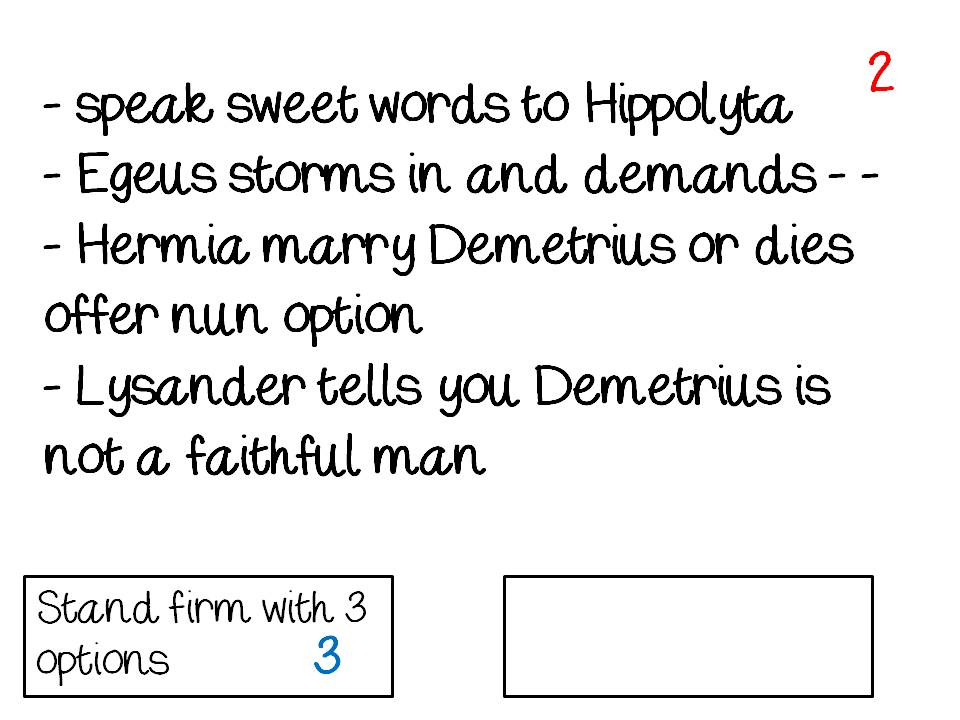
After completing day one of prewriting, it is on to day two: Deviation day! The kids love playing the "what if?" game and not only get a good dose of creative writing but also are secretly analyzing how those decisions influence theme.

1. In my example, the plot took 8 cards, so I model with my first deviation and have that become card 9. I also show students how, if they want, they could have deviations within deviations.
2. Students determine the new theme. (see my method of teaching theme here)
3. I do make sure each child has only one of each card and lays out their outline to show how it makes sense. 
adding in the deviations


Go to the next day, creating the PowerPoints, linking, and drafting. 

Choose Your Own Adventure Prewriting Lesson 1: Set up the plot

What a way to get kids to work and enjoy themselves at the same time! Students liken this project to writing fanfiction. So many of them are so excited after our first day that they tell me "I can't wait for tomorrow!" In my version, students create Choose Your Own Adventure PowerPoints (Google districts can use Slides, of course) for A Midsummer Night's Dream. This is, to me, a great project for a Shakespeare play. What makes this different than the typical Choose Your Own Adventure is that my students are working from a text they have read, thus making this both creative writing as well as reading comprehension and analysis all in one. 

What Choose Your Own Adventure asks students to do:

- review a plot of the play
- write prose paraphrasing the poetic drama
- show an understanding of the plot following one character
- creatively write deviations from the main plot
- determine a potential theme of the play and how the theme changes if a character's actions change
- use Hyperlinks within a presentation to go to non-linear slides


Overview:

Day 1: create cards for accurate timeline
Day 2: create cards for deviations
Day 3: set up slides and hyperlinks
Day 4: draft accurate timeline
Day 5: draft deviations
Day 6: beta testing with revising
Day 7: submission

Day One:

1. I showed students a couple slides of an example. This gives students the big picture. The
example I use is for Theseus because students have to use a main character and Theseus, being a minor character, works well to model without giving or "stealing" the students' ideas. 
2. Students select a main character and write that name at the top of the paper. 
3. Students write a chronological list of all the decisions that character makes through the play. I encourage my students to use scene summaries and the play itself. I also have them sitting next to people who are doing the same character if they choose. That way they discuss and clarify what happened. I did set the students on a 10 minute timer for this portion so they would not lollygag. 
4. Modeling with my list of options by Theseus, I selected three places where I will have a deviation. The requirement for my students were 2 deviations which leads to 3 separate themes with a total of 1000 words if they worked as individuals and 5 deviations which leads to 6 separate themes with a total of 2000 words if they work in partners. Students selected theirs. I encouraged students who want to do more and make things more complex to do so.
5. With my own index cards I modeled creating just the timeline for what actually happened in the play. I leave the deviations blank. I model a couple cards and then showed the kids my completed set of 8. The rest of the class time was for the kids to finish theirs.  

Don't forget to see what I do Day 2 and Day 3. 


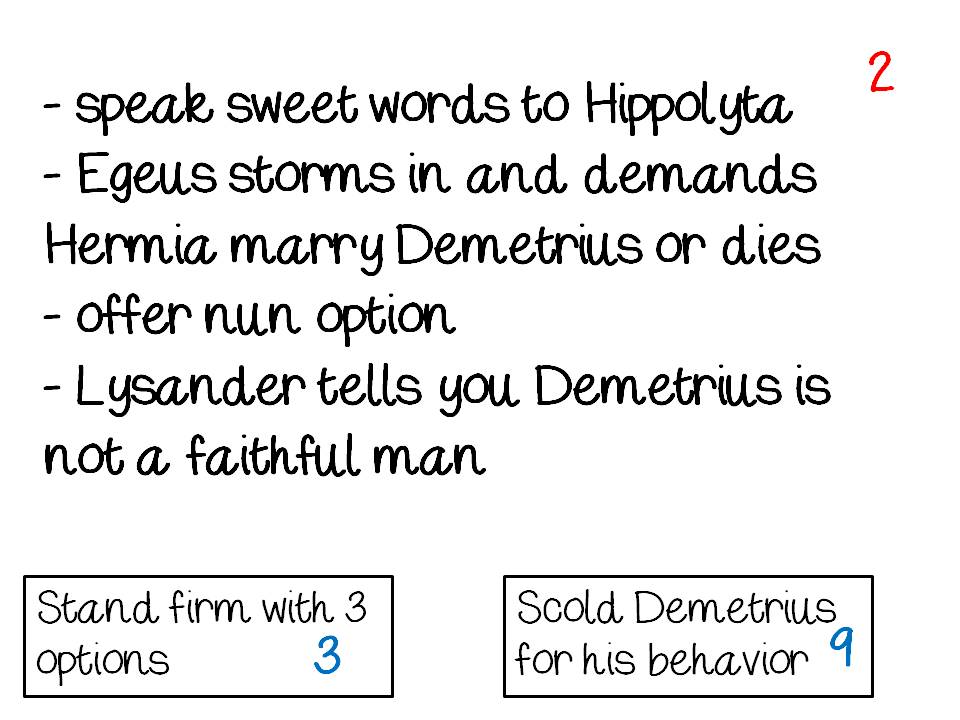
Here are how my example cards looked. I use cards because each card will match up with the PowerPoint slide. 


Cards: red numbers are what the card is,
blue is the card it will link to.
Card 1: title card


Cards are notes/outline.
Deviation Cards: for day 1,
students are only marking the
plot points that actually
 happened.  The blank is where 
the deviation will be filled in later.


Plot Point Cards: sometimes you
have so much information you
will need to split it up over several
 PPT slides or there is a setting
change. That is when you use 1 button.

Final slide includes the theme.


Friday, April 29, 2016

Thinglink to Annotate Tableaus

Inspired by the Royal Shakespeare Company's use of student created tableau to foster close reading, I knew it would be a perfect pairing with Thinglink.
Analyzes movement to connect to motivation

Students select a moment in time to create a freeze frame, snap a picture to create a moment in time from the text, and then annotate the decisions they made in body, facial expression, proximity, and movement. The app is stripped down compared to the website, but it is easy to use with a picture students take of themselves if it is all on one device.
Analyzes proximity to reveal conflict.

The trickiest part is actually on the teacher end. Thinglink limits the amount of groups - 3 - and students - 105. So if you have class sizes like mine and 6 classes, you can't make a group for each class or give every kid a login. I decided to have one student per group request I register. Because the registration produces a dummy e-mail, complex password, and then I have to have students insert the class invite code, there are some steps that the students must take logging in that would not be friendly for younger students, but once they were in and students got into the app, I had very few questions and students were able to work through it fairly quickly.
Citation of lines that show the moment in time.


I also like that this is a shorter assignment. Students did their first one about half a period. I think if we did a second one, we could probably get the kids down to 15 minutes now that they understand how to login and use the app.


Sunday, April 24, 2016

Tagxedo to Analyze Diction

I'm a huge fan of diction analysis, and it is for sure an instructional emphasis in my classroom, which can sometimes make it feel redundant when we've been doing it all year long with every conceivable genre. That's the great thing about tech. You can have students do the same thing in tech that you've done in a very similar way on paper and the students don't even notice. The novelty makes the entire assignment feel fresh and creative. Gamification and tech, I've learned, are great ways to trick kids into practicing skills with renewed vigor!

My example created in the video. Super pretty, no? 

The end of the year we have fun with Shakespeare's A Midsummer Night's Dream. What better way to keep the kids engaged than by taking away the desks, putting on some fairy wings, and punning? 

The video pretty much says it all: add any text (I'm having my students pick a monologue from MSND) to Tagxedo , add the word cloud it into a presentation slide or word processor, pick out the 8-12 largest words, determine connections, write analysis for at least 5 of the words answering the question "Why?" - Why is this word being repeated? Why did the author choose this word and not ___?, save as a PDF and upload to whatever platform floats your boat!


Tuesday, April 5, 2016

Using ReadWriteThink to Simplify Differentiation

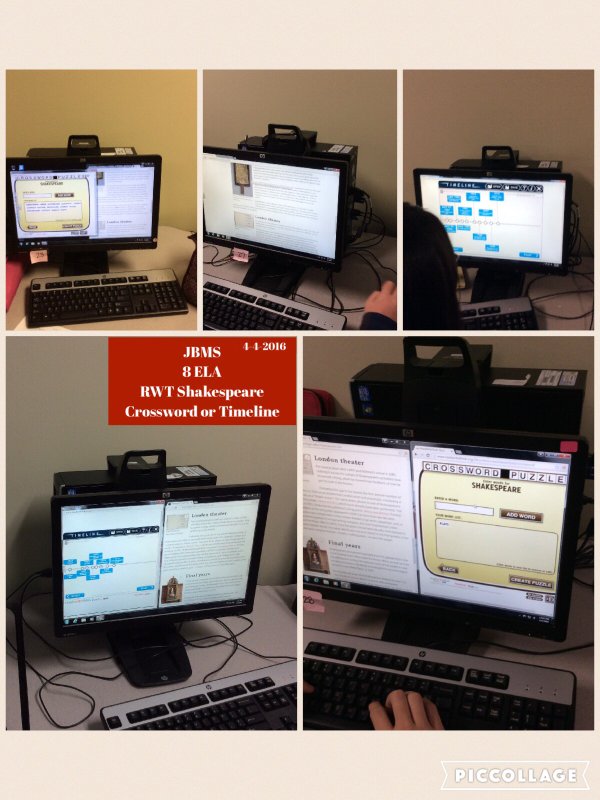
Instead of lecture on Shakespeare, I devoted two days to research of choice. Students researched 15 interesting things about Shakespeare and his time and got to choose the product they made. Students could make a crossword with Crossword Creator or the Timeline. Simplify the amount of info and make a Cube.

Monday, April 4, 2016

Friday, April 18, 2014

technology integration ela

This is a website for both my students as well as my colleagues throughout the globe. For anything I adapted, I want to direct people to the correct primary resources, but since some of my adaptations come from fellow educators who presented at conferences or in staff developments, I do not always know if I'm adapting from a strategy in a book. If you feel that anything on here needs attribution, please let me know so I can direct any visitors to other helpful resources.